Frustrated with blurry background removal or fake-looking Independence Day edits? You aren’t alone—getting a natural portrait in front of Lal Qila used to require advanced Photoshop skills. Fortunately, 15 August Red Fort Background AI Photo Editing has made high-quality patriotic photos effortless. By leveraging tools like Gemini AI and ChatGPT, you can seamlessly swap backgrounds, apply realistic tricolor lighting, and lock your facial features with just one click. In this guide, you’ll discover the exact copy-paste prompts needed to generate stunning, viral 4K Independence Day photos in minutes.
Create Patriotic Independence Day Photos with AI Prompts
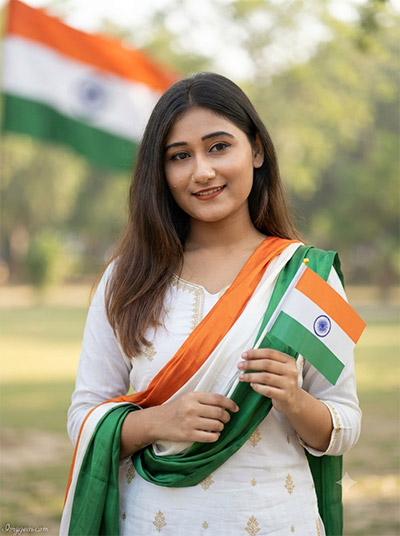
Celebrate Indian Independence Day by making stunning patriotic portraits using realistic AI photo editing prompts. Copy this prompt to try it out.
PROMPT
{
“image_label”: “Imggear.com_1”,
“version”: “3.5”,
“aspect_ratio”: “3:4”,
“prompt”: “An ultra-realistic, photorealistic premium masterpiece, preserving the exact identity, facial proportions, bone structure, eye depth, sharp jawline, authentic facial characteristics, and skin micro-textures (visible pores, fine lines) of the subject in the uploaded personal reference photo without alteration. The facial lighting must seamlessly fuse with the ambient scene highlights and cast realistic shadows, allowing the subject to naturally integrate with the environment’s lighting, shadows, depth, atmospheric perspective, and optical characteristics while preserving the subject’s true identity without alteration, seamlessly integrating the subject into this dramatic portrait, while maintaining complete identity consistency throughout the image. The subject is a young Indian female in her mid-20s with a slender physical build and elegant shoulder width, wearing a traditional white cotton salwar kameez with subtle embroidery, paired with a vibrant saffron, white, and green tri-color silk dupatta draped gracefully across her chest. She is smiling warmly and looking directly at the camera, holding a small Indian national flag in her hands with a delicate grip. Rendered using a premium human skin engine with PBR textures, showing authentic skin pores, fine skin grain, natural melanin transitions, and realistic skin translucency. Set in an outdoor park with a large Indian national flag waving softly in the background. Captured using a full-frame professional mirrorless camera with an 85mm f/1.4 prime lens in RAW format, featuring hyper-detailed edge sharpness, extreme high-definition micro-details on skin and fabric, natural optical rendering, and premium creamy bokeh. The lighting is soft diffused natural daylight with high tonal contrast. A minimal, premium handwritten signature watermark reading \”Imggear.com\” is elegantly positioned in the bottom-left corner, styled in soft white (#ffffff) with slight transparency and thin, elegant cursive strokes of Petit Formal Script, seamlessly blending with the background.”,
“negative_prompt”: “(plastic skin, waxy skin, CGI rendering, AI beauty filter look, porcelain skin, over-smoothed skin, airbrushed skin, synthetic textures, doll-like face, uncanny valley, artificial symmetry), (deformed face, distorted facial features, asymmetrical eyes, bad anatomy, bad proportions, extra limbs, extra fingers, missing fingers, malformed hands, mutated hands), (unnatural lighting, flat lighting, harsh direct sunlight, blown-out highlights, crushed shadows, oversaturated colors, neon colors, unrealistic color grading, HDR look, overexposed, underexposed), (blurry, out of focus, low resolution, pixelated, jpeg artifacts, grainy noise, motion blur, soft focus), (dry land, dusty ground, indoor background, wrong environment, mismatched background), (clothing logos, brand marks, trademarked patterns, text overlays, random watermark placement, duplicate watermark, extra signature), (cartoon style, illustration, painting, 3D render, anime, stylized art, digital art look), (identity mismatch, face swap artifacts, inconsistent facial features, altered bone structure, changed eye color, different face shape), curly hair, short hair, long hair, ponytail, braid, dark hair, blonde hair, brunette, messy hair, bald head, distorted flag colors, incorrect wheel spokes, asymmetric flag layout.”
}
15 August Red Fort Background AI Photo Editing Techniques
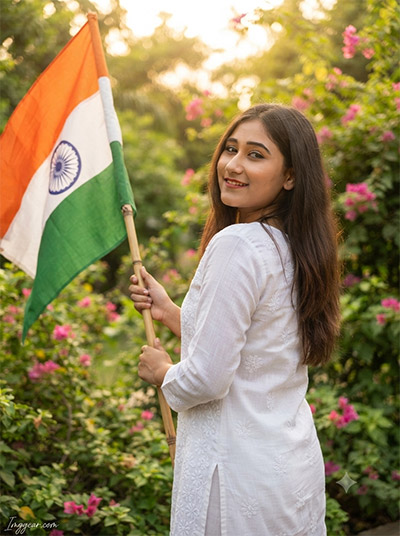
Transform your simple portraits with warm golden lighting and patriotic backdrop elements using tailored prompts. Ready to design your own custom look for the holiday?
PROMPT
{
“image_label”: “Imggear.com_3”,
“version”: “3.5”,
“aspect_ratio”: “3:4”,
“prompt”: “An ultra-realistic, photorealistic premium masterpiece, preserving the exact identity, facial proportions, bone structure, eye depth, sharp jawline, authentic facial characteristics, and skin micro-textures (visible pores, fine lines) of the subject in the uploaded personal reference photo without alteration. The facial lighting must seamlessly fuse with the ambient scene highlights and cast realistic shadows, allowing the subject to naturally integrate with the environment’s lighting, shadows, depth, atmospheric perspective, and optical characteristics while preserving the subject’s true identity without alteration, seamlessly integrating the subject into this dramatic portrait, while maintaining complete identity consistency throughout the image. The subject is a young Indian female in her mid-20s with a natural, athletic build and defined shoulders, wearing a simple white linen kurta with intricate self-embossed floral patterns. She is looking back over her shoulder towards the camera with a gentle, inviting smile. She holds a large, high-contrast Indian national flag on a bamboo staff, which billows elegantly in her hands. Rendered with premium PBR human skin textures, emphasizing realistic skin grain, natural melanin transitions, and soft facial micro-contrast. Set in an outdoor garden environment filled with lush green foliage under warm, filtered golden-hour sunlight. Captured using a full-frame professional mirrorless camera with an 85mm f/1.4 prime lens in RAW format, featuring hyper-detailed edge sharpness, extreme high-definition micro-details on skin and fabric, natural optical rendering, and premium creamy bokeh. A minimal, premium handwritten signature watermark reading \”Imggear.com\” is elegantly positioned in the bottom-left corner, styled in soft white (#ffffff) with slight transparency and thin, elegant cursive strokes of Petit Formal Script, seamlessly blending with the background.”,
“negative_prompt”: “(plastic skin, waxy skin, CGI rendering, AI beauty filter look, porcelain skin, over-smoothed skin, airbrushed skin, synthetic textures, doll-like face, uncanny valley, artificial symmetry), (deformed face, distorted facial features, asymmetrical eyes, bad anatomy, bad proportions, extra limbs, extra fingers, missing fingers, malformed hands, mutated hands), (unnatural lighting, flat lighting, harsh direct sunlight, blown-out highlights, crushed shadows, oversaturated colors, neon colors, unrealistic color grading, HDR look, overexposed, underexposed), (blurry, out of focus, low resolution, pixelated, jpeg artifacts, grainy noise, motion blur, soft focus), (dry land, dusty ground, indoor background, wrong environment, mismatched background), (clothing logos, brand marks, trademarked patterns, text overlays, random watermark placement, duplicate watermark, extra signature), (cartoon style, illustration, painting, 3D render, anime, stylized art, digital art look), (identity mismatch, face swap artifacts, inconsistent facial features, altered bone structure, changed eye color, different face shape), curly hair, short hair, long hair, ponytail, braid, dark hair, blonde hair, brunette, messy hair, bald head, distorted flag pole, deformed hands, double flag.”
}
Indian Flag Saluting Portrait AI Photo Editing Prompts
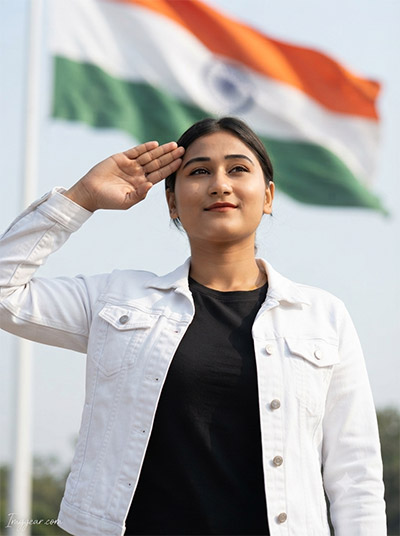
Elevate your Independence Day social media posts with cinematic saluting poses set against majestic national backdrops using simple prompt editing techniques. Drop a comment if you want more prompt ideas like this!
PROMPT
{
“image_label”: “Imggear.com_4”,
“version”: “3.5”,
“aspect_ratio”: “3:4”,
“prompt”: “An ultra-realistic, photorealistic premium masterpiece, preserving the exact identity, facial proportions, bone structure, eye depth, sharp jawline, authentic facial characteristics, and skin micro-textures (visible pores, fine lines) of the subject in the uploaded personal reference photo without alteration. The facial lighting must seamlessly fuse with the ambient scene highlights and cast realistic shadows, allowing the subject to naturally integrate with the environment’s lighting, shadows, depth, atmospheric perspective, and optical characteristics while preserving the subject’s true identity without alteration, seamlessly integrating the subject into this cinematic scene, while maintaining complete identity consistency throughout the image. The subject is a young Indian female in her late 20s with a strong, athletic physical build and wide shoulders, wearing a modern premium casual outfit consisting of a black cotton t-shirt under a crisp white structured denim jacket. She stands in a disciplined, upright posture, executing a respectful and formal salute with her hand raised to her brow, looking slightly upward with a proud and patriotic expression. Rendered with a high-fidelity human skin engine using PBR, capturing natural skin pores, realistic sweat-free skin texture, and soft facial shadows. Set outdoors with a giant, majestic Indian national flag waving grandly in the high background. Captured using a full-frame professional mirrorless camera with an 85mm f/1.4 prime lens in RAW format, featuring hyper-detailed edge sharpness, extreme high-definition micro-details on skin and fabric, natural optical rendering, and premium creamy bokeh. The lighting is bright, clear daylight with crisp tonal contrast. A minimal, premium handwritten signature watermark reading \”Imggear.com\” is elegantly positioned in the bottom-left corner, styled in soft white (#ffffff) with slight transparency and thin, elegant cursive strokes of Petit Formal Script, seamlessly blending with the background.”,
“negative_prompt”: “(plastic skin, waxy skin, CGI rendering, AI beauty filter look, porcelain skin, over-smoothed skin, airbrushed skin, synthetic textures, doll-like face, uncanny valley, artificial symmetry), (deformed face, distorted facial features, asymmetrical eyes, bad anatomy, bad proportions, extra limbs, extra fingers, missing fingers, malformed hands, mutated hands), (unnatural lighting, flat lighting, harsh direct sunlight, blown-out highlights, crushed shadows, oversaturated colors, neon colors, unrealistic color grading, HDR look, overexposed, underexposed), (blurry, out of focus, low resolution, pixelated, jpeg artifacts, grainy noise, motion blur, soft focus), (dry land, dusty ground, indoor background, wrong environment, mismatched background), (clothing logos, brand marks, trademarked patterns, text overlays, random watermark placement, duplicate watermark, extra signature), (cartoon style, illustration, painting, 3D render, anime, stylized art, digital art look), (identity mismatch, face swap artifacts, inconsistent facial features, altered bone structure, changed eye color, different face shape), curly hair, short hair, long hair, ponytail, braid, dark hair, blonde hair, brunette, messy hair, bald head, distorted hand salute, missing fingers on salute, malformed arm pose.”
}
Indian Flag Face Paint 15 August Background Photo Edit
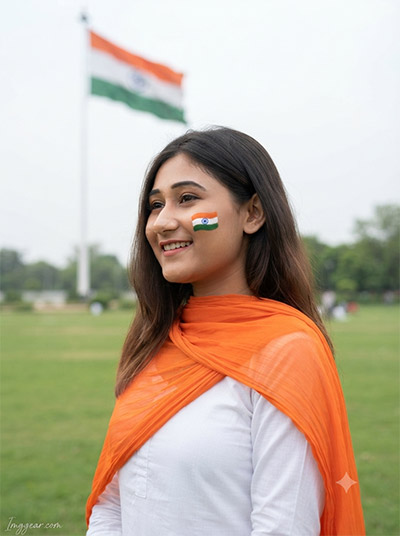
Craft vivid celebratory portraits featuring soft outdoor lighting, tricolor face art, and fluttering flags in the distance. Tap to grab the exact prompt instructions right away.
PROMPT
{
“image_label”: “Imggear.com_5”,
“version”: “3.5”,
“aspect_ratio”: “3:4”,
“prompt”: “An ultra-realistic, photorealistic premium masterpiece, preserving the exact identity, facial proportions, bone structure, eye depth, sharp jawline, authentic facial characteristics, and skin micro-textures (visible pores, fine lines) of the subject in the uploaded personal reference photo without alteration. The facial lighting must seamlessly fuse with the ambient scene highlights and cast realistic shadows, allowing the subject to naturally integrate with the environment’s lighting, shadows, depth, atmospheric perspective, and optical characteristics while preserving the subject’s true identity without alteration, seamlessly integrating the subject into this dramatic portrait, while maintaining complete identity consistency throughout the image. The subject is a young Indian female in her early 20s with a soft, slender physical build and delicate shoulder width, wearing a traditional white cotton kurta paired with a bright, flowing orange dupatta. On her left cheek is a small, cleanly applied tri-color Indian flag face paint. She is smiling joyfully and looking slightly to the side, showcasing her profile. Rendered with premium true-to-life human skin using PBR, showing the clear difference in texture between the smooth, opaque face paint and the natural skin pores, fine skin grain, and melanin transitions beneath. Set in an open, grassy park with a large Indian flag waving on a tall white pole in the distant background. Captured using a full-frame professional mirrorless camera with an 85mm f/1.4 prime lens in RAW format, featuring hyper-detailed edge sharpness, extreme high-definition micro-details on skin and fabric, natural optical rendering, and premium creamy bokeh. The lighting is soft diffused daytime light, creating gentle, natural facial modeling. A minimal, premium handwritten signature watermark reading \”Imggear.com\” is elegantly positioned in the bottom-left corner, styled in soft white (#ffffff) with slight transparency and thin, elegant cursive strokes of Petit Formal Script, seamlessly blending with the background.”,
“negative_prompt”: “(plastic skin, waxy skin, CGI rendering, AI beauty filter look, porcelain skin, over-smoothed skin, airbrushed skin, synthetic textures, doll-like face, uncanny valley, artificial symmetry), (deformed face, distorted facial features, asymmetrical eyes, bad anatomy, bad proportions, extra limbs, extra fingers, missing fingers, malformed hands, mutated hands), (unnatural lighting, flat lighting, harsh direct sunlight, blown-out highlights, crushed shadows, oversaturated colors, neon colors, unrealistic color grading, HDR look, overexposed, underexposed), (blurry, out of focus, low resolution, pixelated, jpeg artifacts, grainy noise, motion blur, soft focus), (dry land, dusty ground, indoor background, wrong environment, mismatched background), (clothing logos, brand marks, trademarked patterns, text overlays, random watermark placement, duplicate watermark, extra signature), (cartoon style, illustration, painting, 3D render, anime, stylized art, digital art look), (identity mismatch, face swap artifacts, inconsistent facial features, altered bone structure, changed eye color, different face shape), curly hair, short hair, long hair, ponytail, braid, dark hair, blonde hair, brunette, messy hair, bald head, distorted face paint, blurry flag design on cheek, smeared makeup.”
}
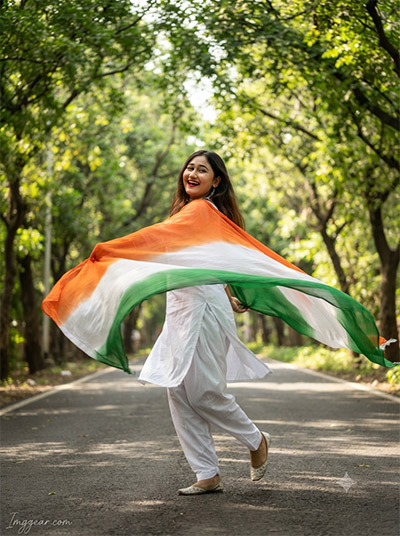
Dynamic August 15 Flying Dupatta AI Image Prompts
Capture joyful motion and vibrant tricolor fabrics along lush tree-lined paths using these creative generation settings. Want to see how easy it is to recreate this look?
PROMPT
{
“image_label”: “Imggear.com_6”,
“version”: “3.5”,
“aspect_ratio”: “3:4”,
“prompt”: “An ultra-realistic, photorealistic premium masterpiece, preserving the exact identity, facial proportions, bone structure, eye depth, sharp jawline, authentic facial characteristics, and skin micro-textures (visible pores, fine lines) of the subject in the uploaded personal reference photo without alteration. The facial lighting must seamlessly fuse with the ambient scene highlights and cast realistic shadows, allowing the subject to naturally integrate with the environment’s lighting, shadows, depth, atmospheric perspective, and optical characteristics while preserving the subject’s true identity without alteration, seamlessly integrating the subject into this cinematic scene, while maintaining complete identity consistency throughout the image. The subject is a young Indian female in her mid-20s with a dynamic, athletic physical build, captured mid-action while running and twirling joyfully. She is wearing a simple white traditional salwar kameez and holds a massive, billowing tri-color dupatta (saffron, white, and green) that fans out dramatically in mid-air around her. Her face is radiant with a natural, happy laugh, looking back over her shoulder toward the camera. Rendered with premium PBR human skin textures, capturing realistic skin grain, subtle motion-free facial details, and natural skin undertones. Set in a beautiful, tree-lined asphalt pathway with natural green leaves forming a canopy overhead. Captured using a full-frame professional mirrorless camera with an 85mm f/1.4 prime lens in RAW format, using a fast shutter speed to freeze her motion, featuring hyper-detailed edge sharpness, extreme high-definition micro-details on skin and fabric, natural optical rendering, and premium creamy bokeh. The lighting is bright dappled sunlight filtering through the trees. A minimal, premium handwritten signature watermark reading \”Imggear.com\” is elegantly positioned in the bottom-left corner, styled in soft white (#ffffff) with slight transparency and thin, elegant cursive strokes of Petit Formal Script, seamlessly blending with the background.”,
“negative_prompt”: “(plastic skin, waxy skin, CGI rendering, AI beauty filter look, porcelain skin, over-smoothed skin, airbrushed skin, synthetic textures, doll-like face, uncanny valley, artificial symmetry), (deformed face, distorted facial features, asymmetrical eyes, bad anatomy, bad proportions, extra limbs, extra fingers, missing fingers, malformed hands, mutated hands), (unnatural lighting, flat lighting, harsh direct sunlight, blown-out highlights, crushed shadows, oversaturated colors, neon colors, unrealistic color grading, HDR look, overexposed, underexposed), (blurry, out of focus, low resolution, pixelated, jpeg artifacts, grainy noise, motion blur, soft focus), (dry land, dusty ground, indoor background, wrong environment, mismatched background), (clothing logos, brand marks, trademarked patterns, text overlays, random watermark placement, duplicate watermark, extra signature), (cartoon style, illustration, painting, 3D render, anime, stylized art, digital art look), (identity mismatch, face swap artifacts, inconsistent facial features, altered bone structure, changed eye color, different face shape), curly hair, short hair, long hair, ponytail, braid, dark hair, blonde hair, brunette, messy hair, bald head, unnatural fabric motion, pixelated dupatta texture, distorted pathway lines.”
}
💡 AI Photo Editing Pro Tips for Perfect Results
Keep Faces Consistent: If the AI changes the face, add this exact phrase to the very beginning of your prompt: “Preserve facial identity 100%, do not alter facial features or proportions.”
Reroll for Perfection: Run every prompt 2–3 times! The second or third generation is almost always sharper and packed with better details.
Get the DSLR Look: Want that beautiful, blurred background? Just add “f/1.8 shallow depth of field” to your prompt.
Control the Camera Shot: Tell the AI exactly what frame you want by adding terms like “Close-up portrait,” “Full-body shot,” or “Wide-angle view.”
Set the Vibe with Lighting: Lighting makes or breaks an AI image. Add “Cinematic lighting,” “Golden hour sunset,” or “Soft studio lighting” for a professional touch.
📐 Best Aspect Ratio: Use 3:4 Vertical for stunning, ready-to-post results on Instagram and Pinterest.